IPTV on Google TV Streamer and Chromecast with Google TV
Google TV is Android TV with a recommendation-heavy home screen. Setup on the Streamer and Chromecast, plus the storage, Ethernet and display quirks to know.
Google TV is Android TV with a different home screen, so installing a player works the same way: Google Play, install, sign in. What's different are a few Google TV-specific quirks — storage on Chromecast, how you get Ethernet, and a home screen full of recommendations. This guide focuses on those.
Which device do you have?
- Google TV Streamer — a small box with a built-in Ethernet port and more storage. The best Google TV option for IPTV.
- Chromecast with Google TV (4K or HD) — a dongle with a remote. Wi-Fi only out of the box and limited storage.
- TVs with Google TV built in — many recent Sony, TCL and Hisense models.
Setup in four steps
- Update: Settings → System → About → System update.
- Install: go to the Apps tab (or search), find the player your provider recommends, select Install.
- Sign in: enter your access details or playlist link and let the list load.
- Pin it: in Your apps, long-press the app and choose Move to put it first.
The installation details are identical to IPTV on Android TV, including the hardware-decoding advice.
Quirk 1: Storage on Chromecast with Google TV
The Chromecast models ship with little storage (around 8 GB, of which only part is free). When it fills, apps slow down or fail to update.
- Uninstall preinstalled apps you don't use.
- Settings → Apps → select app → Clear cache for large apps.
- Keep IPTV player updates installed; old versions are often slower.
Quirk 2: Getting a wired connection
- Google TV Streamer: plug an Ethernet cable straight in.
- Chromecast: use a USB-C hub or Ethernet adapter with power pass-through — the USB-C port powers the dongle, so the adapter must pass power through. It's one of the most worthwhile upgrades for 4K.
Quirk 3: A busier home screen
Google TV promotes content from many services. For a calmer screen that opens straight to your apps, turn on Apps only mode (Settings → Accounts & sign-in → your profile). It hides recommendations; you can switch back any time.
Quirk 4: Display settings
- Match content frame rate (under Display & Sound → Advanced display settings): enable it so 50/60 fps sport and 24 fps films display correctly.
- Dynamic range: leave "always convert to HDR" style options off — forcing HDR on regular content often looks washed out. Details in HD vs Full HD vs 4K.
Troubleshooting on Google TV
- App disappears from the home row: it's still installed — check Your apps and pin it again.
- Buffering on the Chromecast: it sits behind the TV where Wi-Fi is weakest; the Ethernet adapter usually fixes it. See buffering fixes.
- Remote stops working: replace batteries, then re-pair under Settings → Remotes & Accessories.
Install apps only from the device's official store. Apps from websites skip the store's safety checks and are a common source of malware — see our safety guide.
About this guide. Written and maintained by the IPTVBESTLIFE team. Device menus and apps change over time — if a step no longer matches your screen, let us know and we'll update it.
Frequently asked questions
Is Google TV the same as Android TV?
Google TV is built on Android TV with a different, recommendation-focused home screen. Apps and settings are almost identical.
Which Google TV device is best for IPTV?
The Google TV Streamer, because it has built-in Ethernet and more storage. A Chromecast with Google TV works well too, especially with an Ethernet adapter.
Related articles
How to Set Up IPTV on Android TV and Android TV Boxes
Android TV powers many Smart TVs and most TV boxes. Setup via Google Play, the player settings that matter, and how to avoid problem boxes.
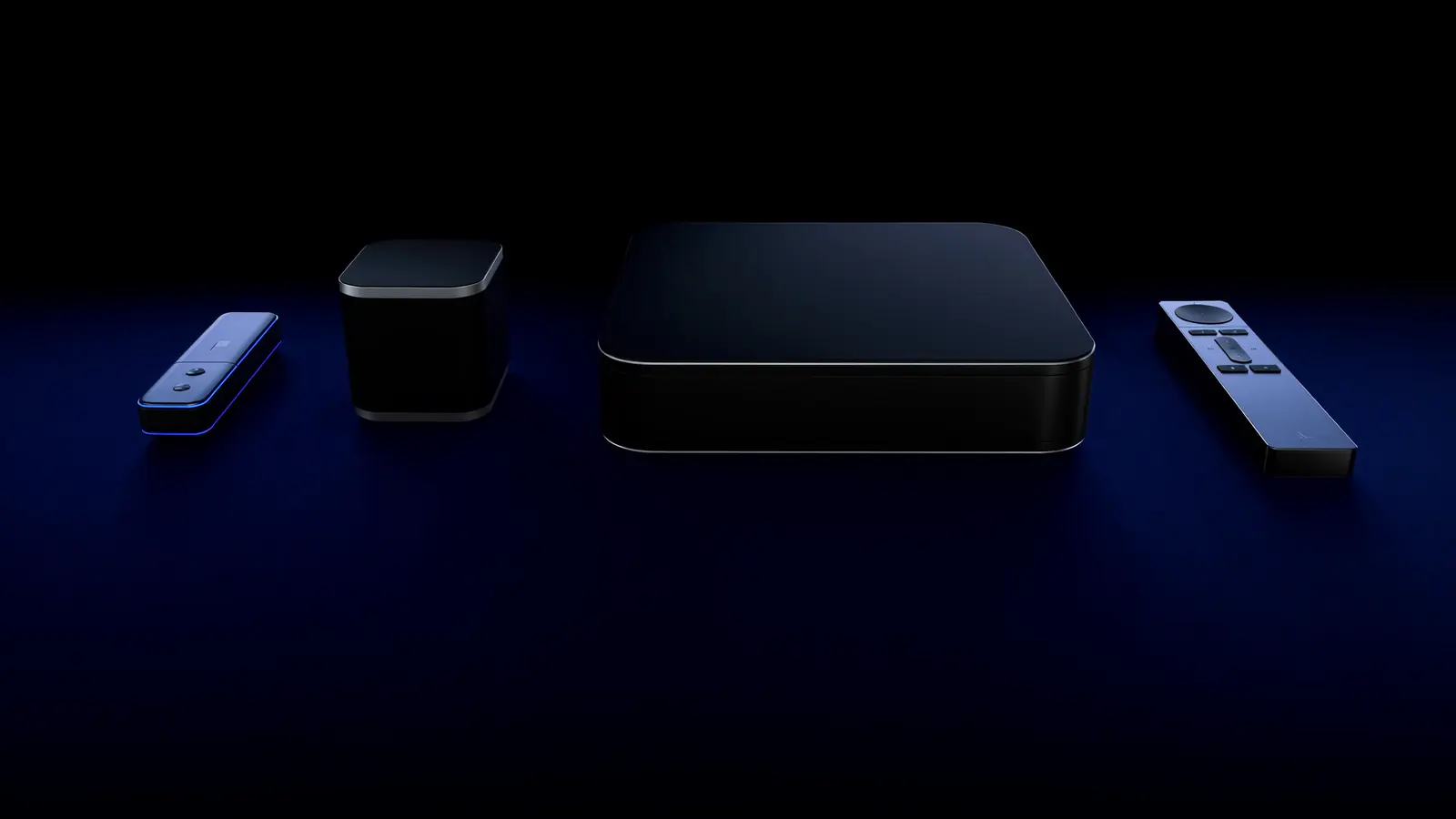
Smart TV App, Streaming Stick or TV Box? Choosing the Best Device for IPTV
Your TV's own apps, a streaming stick, a TV box or Apple TV — how they compare on speed, Wi-Fi vs Ethernet, 4K support and simplicity, and which suits which home.
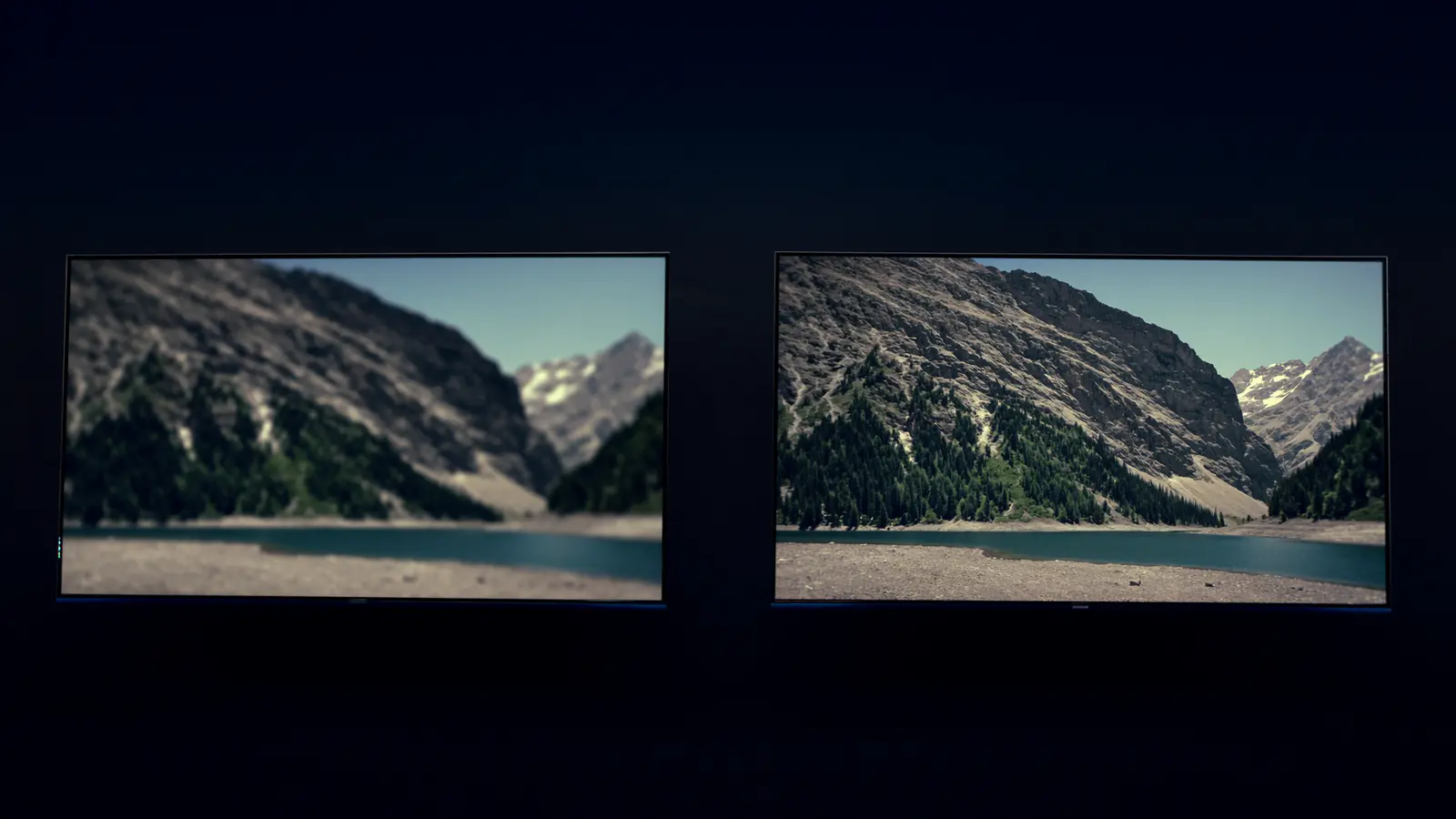
HD vs Full HD vs 4K Streaming: When Is 4K Worth It?
Resolution isn't the whole story. When 4K is visibly sharper, why HDR and frame rate often matter more, and what each quality level needs.