How to Watch IPTV on Apple TV 4K
Apple TV 4K is one of the smoothest IPTV devices — if you set it up properly. Installation, the Match Content settings, and tips for iPhone and iPad too.

Apple TV 4K is fast, gets software updates for years and has an excellent remote — but its biggest advantage for IPTV is one settings menu: Match Content. Set it correctly and HDR, sport and films display exactly as intended; leave it off and colours can look washed out and motion slightly juddery.
What you need
- Apple TV 4K (any generation) is recommended. Apple TV HD works but is limited to 1080p and slower.
- Some Apple TV 4K models have an Ethernet port — use it if yours does.
Install and sign in
- Update tvOS: Settings → System → Software Updates.
- Open the App Store on Apple TV, search for the player your provider recommends and select Get.
- Open the app and enter your access details.
Tip: when a text field appears, an iPhone on the same Wi-Fi shows a keyboard notification — much faster than typing with the remote.
The settings that matter: Match Content
Go to Settings → Video and Audio.
- Format: choose your TV's highest supported format — usually 4K SDR is a good base, and let Match Dynamic Range switch to HDR when content is HDR.
- Match Content → Match Dynamic Range: On. Apple TV outputs HDR only when the content is HDR, so regular channels aren't artificially converted and washed out.
- Match Content → Match Frame Rate: On. A 50 fps football match plays at 50 fps and a 24 fps film at 24 fps, avoiding the judder caused by converting between rates.
The TV screen may blink briefly when switching — that's normal. Why this matters is explained further in HD vs Full HD vs 4K streaming.
Sound
- With a soundbar or AV receiver, check Audio Format and use Calibrate → Wireless Audio Sync (with an iPhone) if you use AirPlay speakers.
- If lips and voices don't match on wired setups, see audio out of sync fixes.
Using the same service on iPhone and iPad
Many players exist on iPhone, iPad and Apple TV, sometimes as a single purchase. Each device still needs signing in, and simultaneous playback counts against your plan's connections — see using IPTV on multiple devices.
Troubleshooting on Apple TV
- App keeps closing: delete and reinstall it (press and hold the app icon → Delete), then sign in again.
- Screen flickers when starting a channel: that's Match Content switching modes; it's expected.
- Everything is slow: Settings → System → Restart.
- Buffering: on Wi-Fi, check the Apple TV isn't enclosed in a cabinet; use Ethernet if available. More in buffering causes and fixes.
Install apps only from the device's official store. Apps from websites skip the store's safety checks and are a common source of malware — see our safety guide.
About this guide. Written and maintained by the IPTVBESTLIFE team. Device menus and apps change over time — if a step no longer matches your screen, let us know and we'll update it.
Frequently asked questions
Should I turn on Match Dynamic Range on Apple TV?
Yes. It shows HDR only when the content is HDR, which avoids washed-out colours on regular channels.
Does Apple TV HD support 4K IPTV?
No. Apple TV HD is limited to 1080p. For 4K and HDR you need an Apple TV 4K.
Related articles
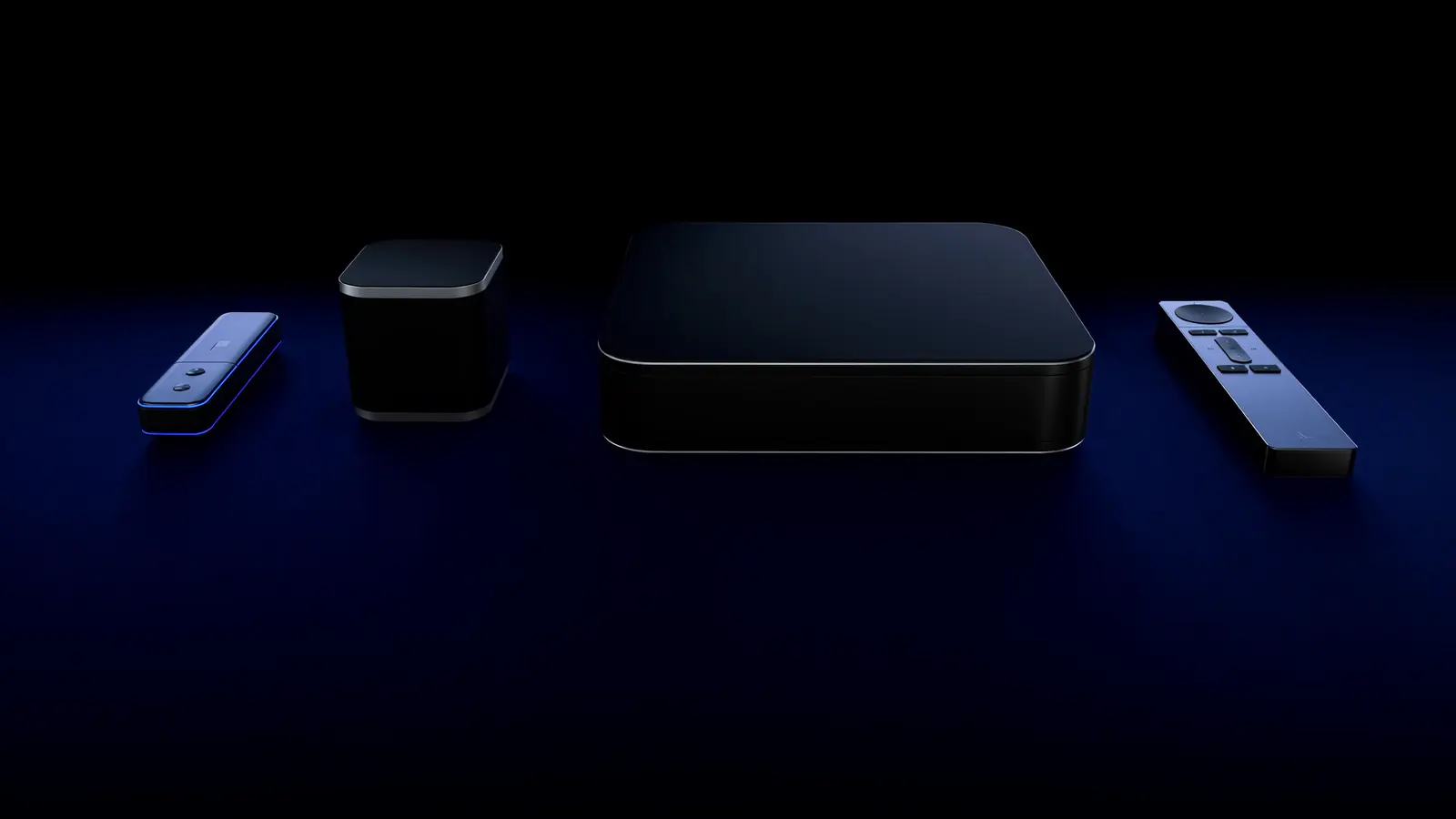
Smart TV App, Streaming Stick or TV Box? Choosing the Best Device for IPTV
Your TV's own apps, a streaming stick, a TV box or Apple TV — how they compare on speed, Wi-Fi vs Ethernet, 4K support and simplicity, and which suits which home.
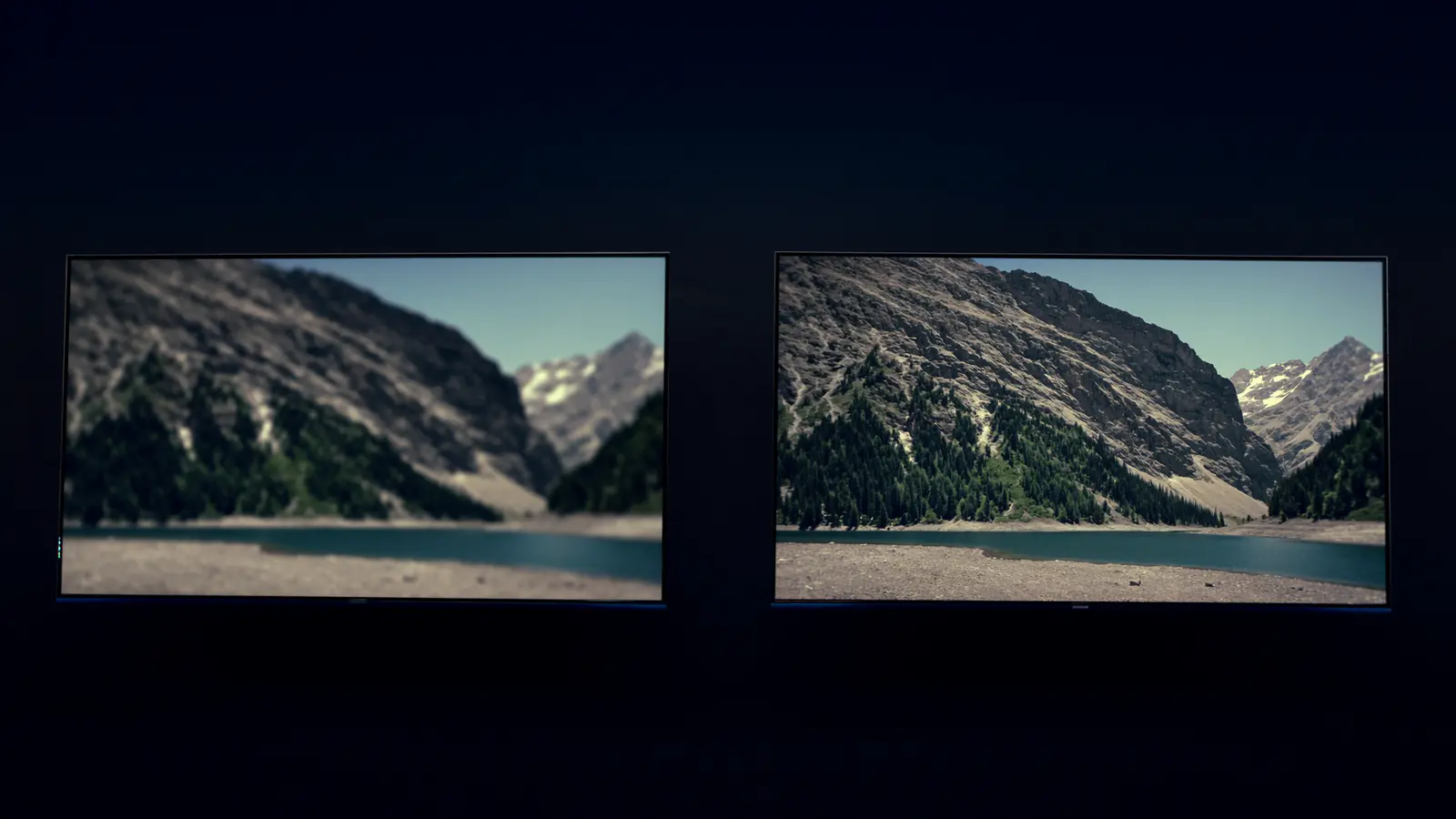
HD vs Full HD vs 4K Streaming: When Is 4K Worth It?
Resolution isn't the whole story. When 4K is visibly sharper, why HDR and frame rate often matter more, and what each quality level needs.
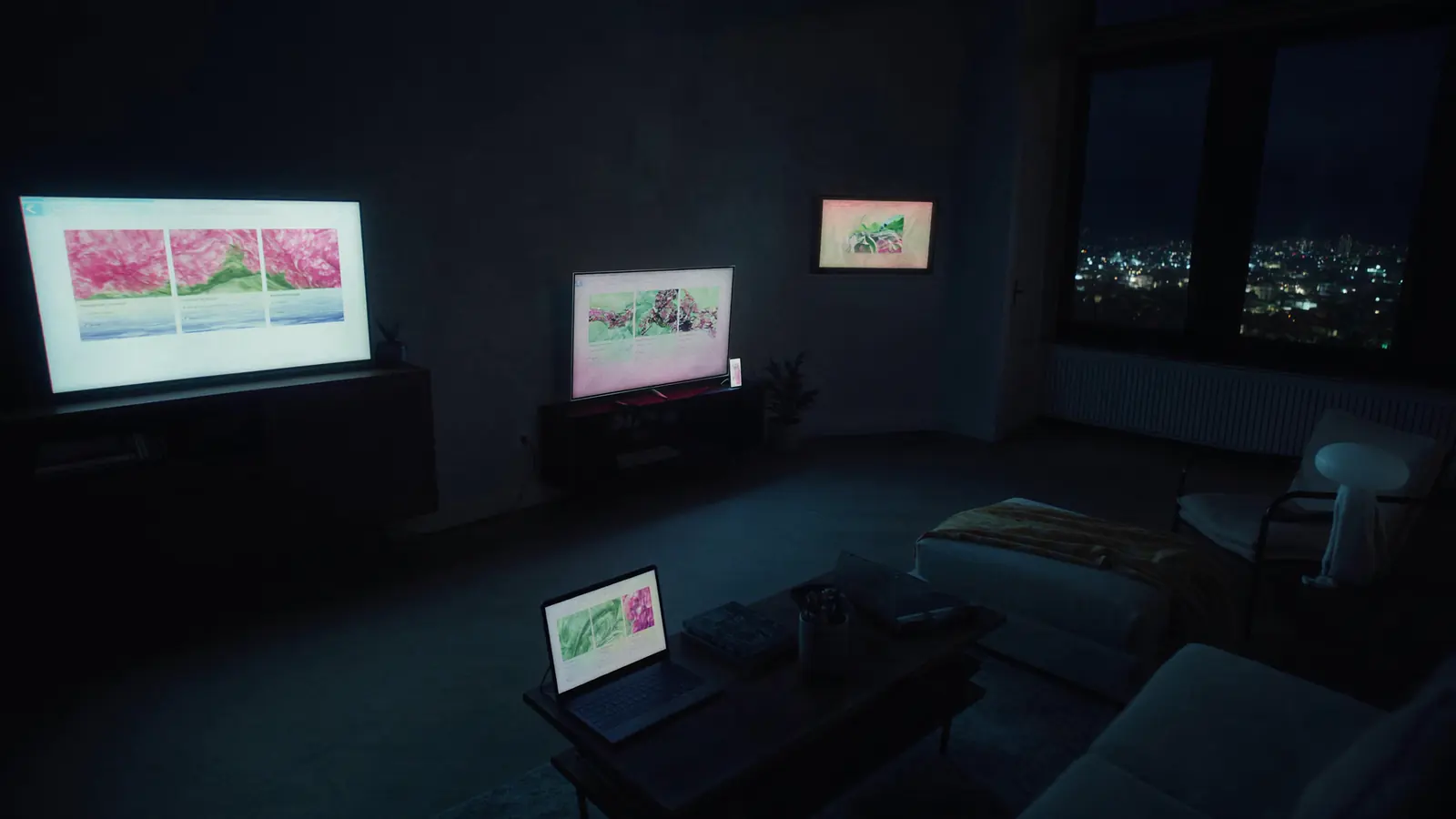
Using IPTV on Multiple Devices: Connections, Bandwidth and Household Setups
How many screens can you really use at once? Connections vs installs, bandwidth maths for several streams, and practical setups for different households.