How to Watch IPTV on an LG Smart TV (webOS)
LG TVs run webOS with the LG Content Store. Installing a player, the webOS quirks to know about, and picture settings that suit OLED and LCD models.
LG Smart TVs run webOS, with apps from the LG Content Store (labelled Apps on recent models). Installation is quick; the most useful work happens afterwards, in a handful of webOS picture and network settings.
Step 1: Update and sign in to webOS
- Open Settings → All Settings → Support (on newer models General → About This TV) and check for a software update.
- Some Content Store downloads require an LG account — sign in under General → LG Account if prompted.
Step 2: Install the player app
- Press Home on the Magic Remote.
- Open Apps / LG Content Store.
- Search for the player your provider recommends, select Install, then Launch.
If the app isn't listed, the store may not offer it in your region or on your webOS version. A streaming stick is the easy alternative — see choosing a device for IPTV.
Step 3: Enter your details
Use the Magic Remote's pointer to type — it's faster than the arrow keys. Enter your details exactly, then let the channel list and guide finish loading before you start browsing.
Step 4: webOS settings that make a difference
Picture
- Picture Mode: Filmmaker Mode or Cinema for films; Standard or Sports for live sport.
- TruMotion: Off for films; a low or custom setting for fast sport if you notice blur.
- Energy Saving: set to Off. It noticeably dims the picture, especially in darker scenes.
OLED owners
- Use the brand's recommended "pixel refresher" and screen-shift features as intended, and avoid leaving a static channel guide on screen for hours — a general OLED care habit, not an IPTV-specific issue.
Network
- Most LG TVs have a LAN port — use it for the main TV.
- On Wi-Fi, prefer 5 GHz and keep the router close.
Sound
- If dialogue lags with a soundbar, look under Sound → AV Sync Adjustment and see audio out of sync fixes.
LG-specific troubleshooting
- Slow menus after months of use: unplug the TV at the wall for 60 seconds. webOS "Quick Start" keeps the system in a sleep state that never fully clears.
- App freezes: uninstall and reinstall it from the Content Store, then sign in again.
- 4K looks no sharper than HD: check the content is actually 4K and your connection can sustain it — see HD vs Full HD vs 4K.
Install apps only from the device's official store. Apps from websites skip the store's safety checks and are a common source of malware — see our safety guide.
The steps above are LG-specific; the full universal checklist is in how to set up IPTV.
About this guide. Written and maintained by the IPTVBESTLIFE team. Device menus and apps change over time — if a step no longer matches your screen, let us know and we'll update it.
Frequently asked questions
Is Quick Start+ on LG TVs bad for IPTV?
Not bad, but because the TV never fully shuts down, a periodic full restart (unplugging for a minute) clears slowdowns that build up over time.
Which LG picture mode is best for sport?
Standard or Sports mode, often with a low TruMotion setting to reduce blur on fast movement.
Related articles
How to Watch IPTV on a Samsung Smart TV (Tizen)
Samsung TVs run Tizen with their own app store. How to check compatibility, install a player, and the Samsung-specific settings worth changing afterwards.
How to Set Up IPTV on Any Device: A Step-by-Step Guide
A universal setup checklist that works on Smart TVs, streaming sticks, phones and computers — with links to device-specific guides where the steps differ.
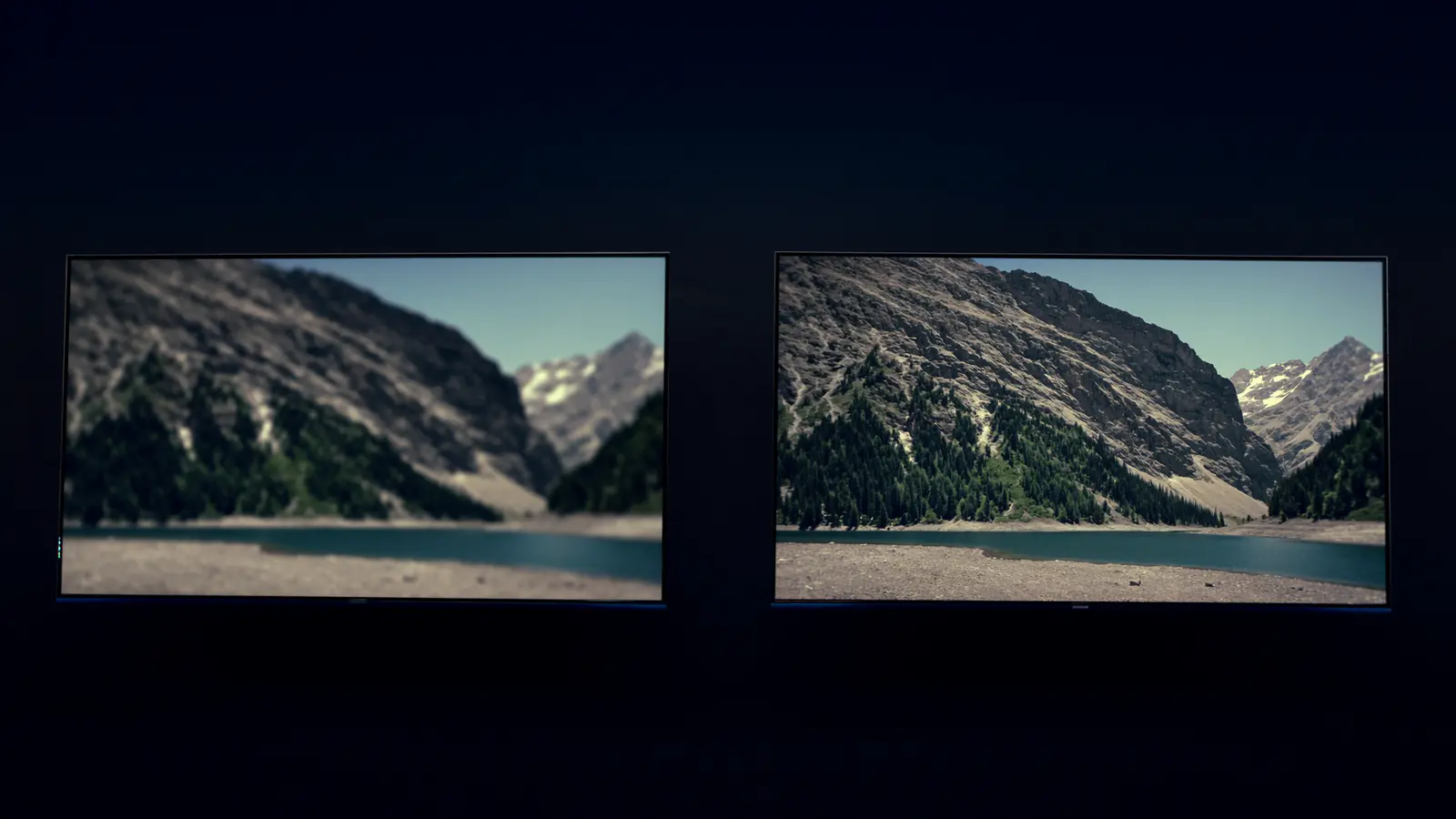
HD vs Full HD vs 4K Streaming: When Is 4K Worth It?
Resolution isn't the whole story. When 4K is visibly sharper, why HDR and frame rate often matter more, and what each quality level needs.