How to Watch IPTV on a Samsung Smart TV (Tizen)
Samsung TVs run Tizen with their own app store. How to check compatibility, install a player, and the Samsung-specific settings worth changing afterwards.
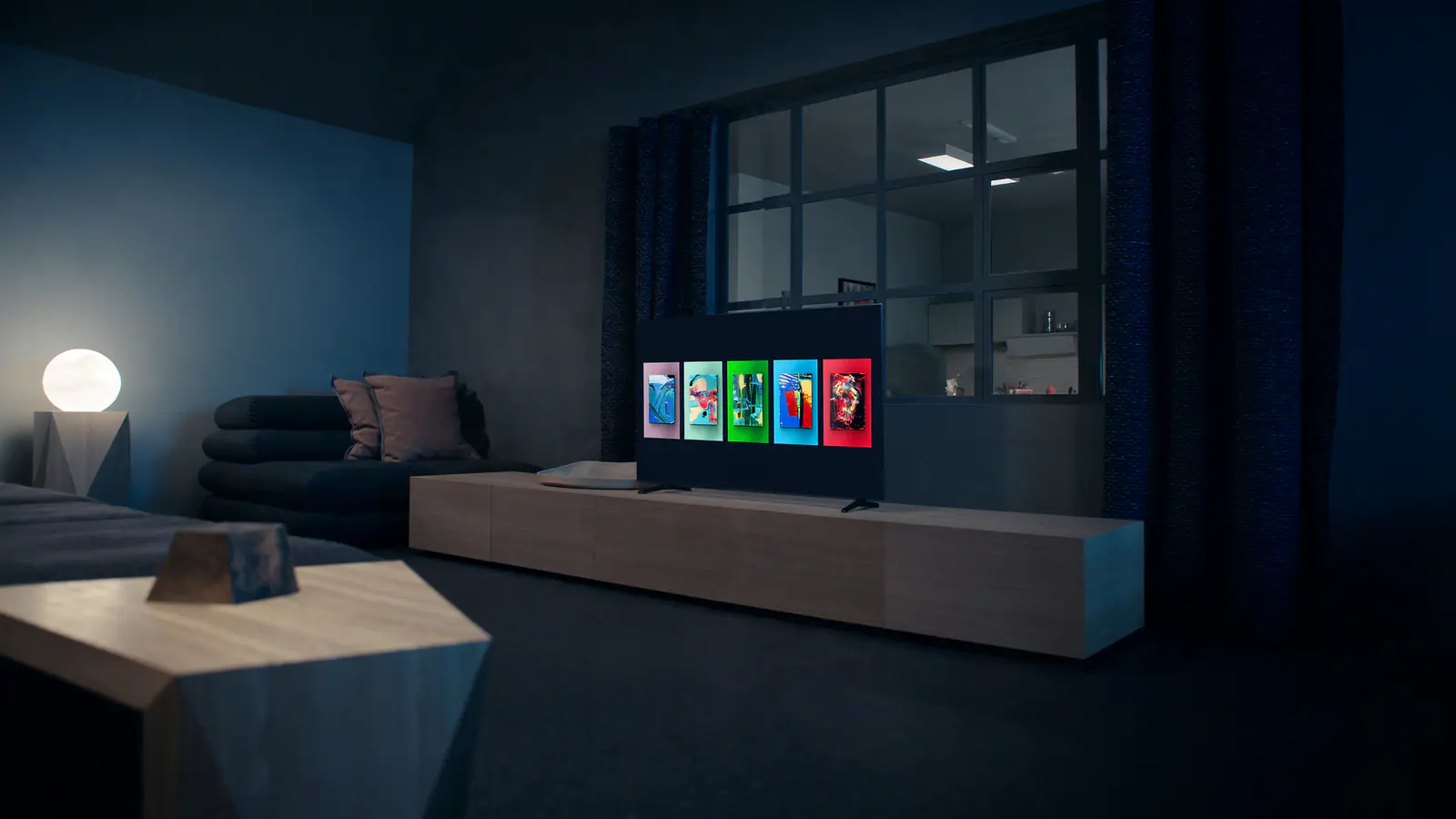
Samsung Smart TVs run Tizen, Samsung's own operating system, with apps from the Samsung app store (the Apps panel). Most models from the last several years can run an IPTV player; older ones may not have one available, in which case a streaming stick is the fix.
Step 1: Check your model year and software
- Press Home, then open Settings → Support → About This TV. The model code tells you the year (your TV's manual or Samsung's site decodes it).
- Go to Settings → Support → Software Update → Update Now and install anything pending.
- Check the network: Settings → General → Network → Network Status.
App availability depends on region and model year. If the player your provider recommends doesn't appear in the store after updating, skip to "If the app isn't available" below.
Step 2: Install the player
- Press Home and open Apps.
- Select the search (magnifier) icon and type the app name.
- Select the app and choose Install, then Open.
Some Samsung apps display a device ID or activation code on first launch. You enter that on the app's website, then add your access details there; the TV picks them up after a restart of the app.
Step 3: Sign in and let it load
Enter your details exactly — case-sensitive, no trailing spaces. The first channel list and guide download can take a couple of minutes on Samsung TVs; leave it to finish. If the programme guide stays empty, that's a separate data feed and usually fixable.
Step 4: The Samsung settings worth changing
Network
- Use the Ethernet port on the back if you can — the single biggest reliability upgrade.
- Wi-Fi only? Prefer the 5 GHz network name, and keep the router in the same or next room.
Picture (Settings → Picture)
- Picture Mode: Filmmaker Mode or Movie for films and series; Standard for sport.
- Picture Clarity Settings / Auto Motion Plus: Off for films; a low custom setting can help fast sport. High settings cause the "soap-opera" look.
- Eco / Energy Saving (General → Power and Energy Saving): turn off brightness-reducing options so the picture isn't dimmed.
Sound
- If voices drift out of sync with a soundbar, check Sound → Expert Settings for audio delay options, and see fixing audio sync.
Samsung-specific fixes
- App won't open or freezes: Settings → Support → Device Care → Manage Storage, select the app and clear its cache/data, then sign in again.
- Everything feels sluggish: a full restart helps — hold the remote's power button until the Samsung logo appears, rather than using standby.
- Picture freezes on Wi-Fi only: try Ethernet or move the router; see IPTV buffering causes and fixes.
If the app isn't available on your Samsung
Older Tizen versions lose app support first. A streaming stick or box plugged into HDMI gives you a current app store for a modest outlay — compare options in choosing the best device for IPTV.
Install apps only from the device's official store. Apps from websites skip the store's safety checks and are a common source of malware — see our safety guide.
For the general process on any device, see how to set up IPTV. IPTVBESTLIFE customers can ask us for steps matched to their exact Samsung model.
About this guide. Written and maintained by the IPTVBESTLIFE team. Device menus and apps change over time — if a step no longer matches your screen, let us know and we'll update it.
Frequently asked questions
Why can't I find an IPTV app on my Samsung TV?
App availability varies by region and model year, and older Tizen versions lose app support first. Update the TV; if the app still isn't there, use a streaming stick.
Should I use Filmmaker Mode on Samsung for IPTV?
For films and series, yes — it's the most accurate. For daytime sport, Standard mode is brighter and usually more pleasant.
Related articles
How to Watch IPTV on an LG Smart TV (webOS)
LG TVs run webOS with the LG Content Store. Installing a player, the webOS quirks to know about, and picture settings that suit OLED and LCD models.
How to Set Up IPTV on Any Device: A Step-by-Step Guide
A universal setup checklist that works on Smart TVs, streaming sticks, phones and computers — with links to device-specific guides where the steps differ.

Why Does My IPTV Picture Look Blurry or Blocky? How to Improve It
Soft, blocky, washed-out or oddly smooth pictures each have different causes. Identify yours and apply the right fix — connection, device or TV settings.