How to Set Up IPTV on Any Device: A Step-by-Step Guide
A universal setup checklist that works on Smart TVs, streaming sticks, phones and computers — with links to device-specific guides where the steps differ.
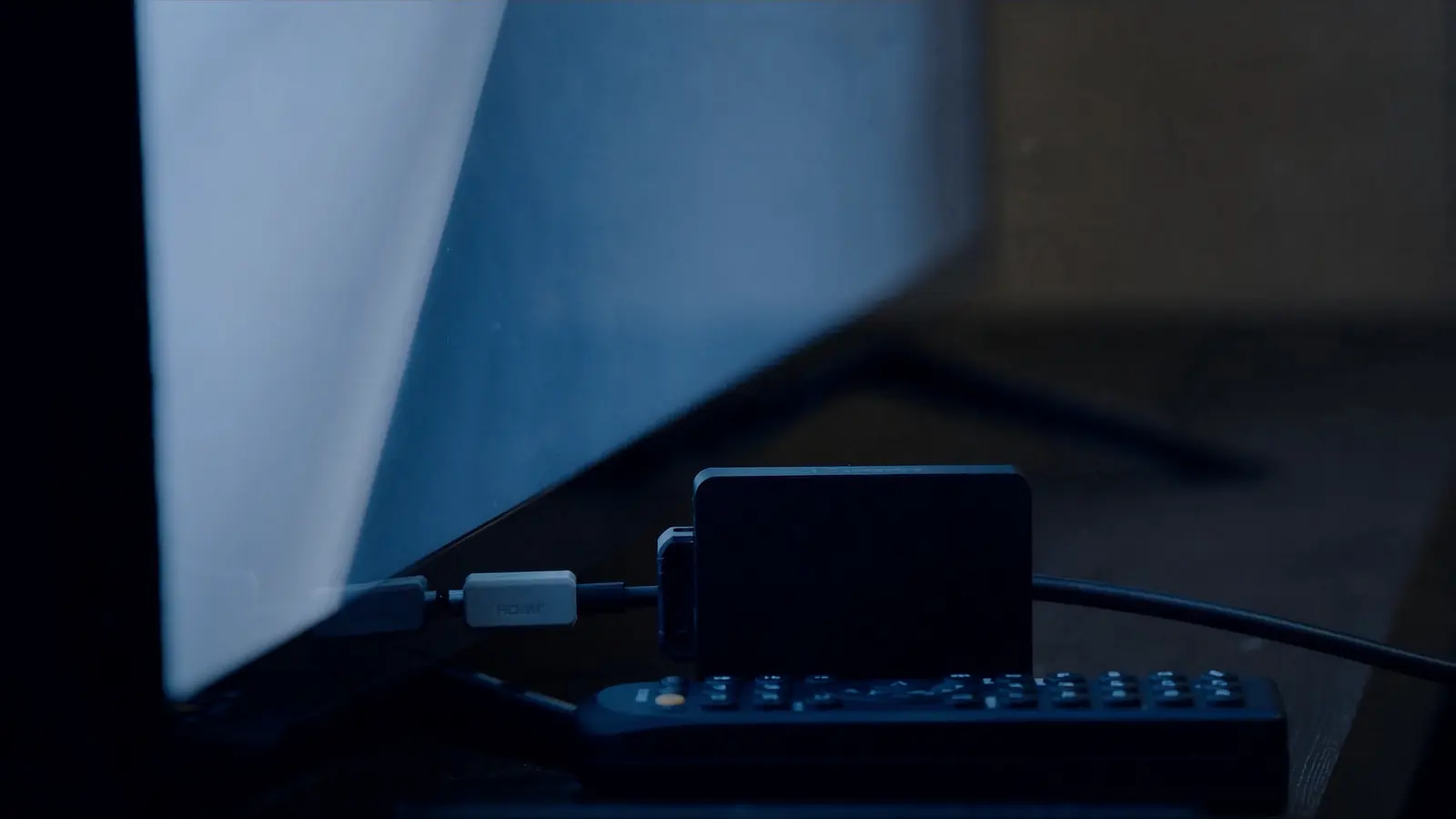
Setting up IPTV takes most people 10–15 minutes and follows the same five stages on every device: prepare the connection, install a player, sign in, test, then tune. Only the menus differ — for those, jump to your device's guide (or, if you haven't chosen a service or device yet, start with the IPTV beginner guide):
Samsung · LG · Android TV · Google TV · Fire TV · Apple TV
Before you start: a 2-minute checklist
- Your access details from the provider (login or playlist link), written down exactly as sent
- The name of the player app your provider recommends for your device
- Your Wi-Fi password, or an Ethernet cable if the TV or box has a port
- The TV remote — and, on some TVs, a phone for typing long addresses
Stage 1: Prepare the connection (5 minutes)
- Test the speed on the device you'll watch on, not on your phone next to the router. Most TVs have a network test in their settings; otherwise use a speed-test app. Aim for about 10 Mbps for HD and 25 Mbps for 4K. More detail: internet speed for IPTV.
- Use Ethernet if you can. If not, connect to the 5 GHz Wi-Fi band and keep the router within a room or two of the TV.
- Restart the router if it's been running for weeks — it clears memory and stale connections.
Stage 2: Update the device
Software updates fix playback bugs and add support for newer video formats. Look for Software update under Support, System or About in your device's settings. Do this before installing apps; some app stores refuse installs on outdated firmware.
Stage 3: Install the player app
- Open your device's official app store.
- Search for the player your provider recommends and install it.
- Open it once so it can finish its first-run setup.
If your TV's store doesn't have a suitable app, a streaming stick is the easy workaround — compare options in choosing the best device for IPTV. Avoid installing apps from websites; it bypasses the store's safety checks.
Stage 4: Enter your access details
- Login style: server address, username and password. Type them exactly — they're case-sensitive, and a stray space at the end is the most common setup error.
- Playlist style: paste the playlist (M3U) link, and the EPG link if one was provided.
- Activation style: some apps show a code or device ID to register on a website.
Then wait. On first launch the app downloads the whole channel list and programme guide, which can take a minute or two. Interrupting it often leaves a half-loaded list. Unsure what these terms mean? See our IPTV glossary.
Stage 5: Test properly
Spend five minutes checking the three things that fail independently:
| Test | What good looks like | If it fails |
|---|---|---|
| Play a live channel for 2–3 minutes | Starts within seconds, no pauses | Buffering fixes |
| Open an on-demand title and skip ahead | Resumes quickly after skipping | Restart app; check speed |
| Open the programme guide | Shows now/next for most channels | EPG fixes |
Stage 6: Tune the picture and sound
- Picture mode: Filmmaker/Movie for films, Standard for sport.
- Energy saving: off — it dims the picture.
- Motion smoothing: off or low for films.
- Match frame rate / dynamic range on streaming devices that offer it.
- Favourites: add your most-watched channels now; it turns a long list into your own line-up.
For deeper picture tweaks, see improving IPTV picture quality.
If something goes wrong
Work through the IPTV troubleshooting checklist — it's organised by symptom. IPTVBESTLIFE customers can also message our team; we send setup steps for your exact device.
About this guide. Written and maintained by the IPTVBESTLIFE team. Device menus and apps change over time — if a step no longer matches your screen, let us know and we'll update it.
Frequently asked questions
How long does IPTV setup take?
Typically 10–15 minutes, most of which is updating the device and letting the channel list load for the first time.
Do I need to set up each device separately?
Yes. Each TV, stick, phone or tablet needs the player app installed and your access details entered. Check how many devices your plan allows to play at the same time.
Why is my channel list empty after signing in?
Most often the details were mistyped (watch for spaces and capital letters) or the first download was interrupted. Re-enter the details and let the list finish loading.
Related articles
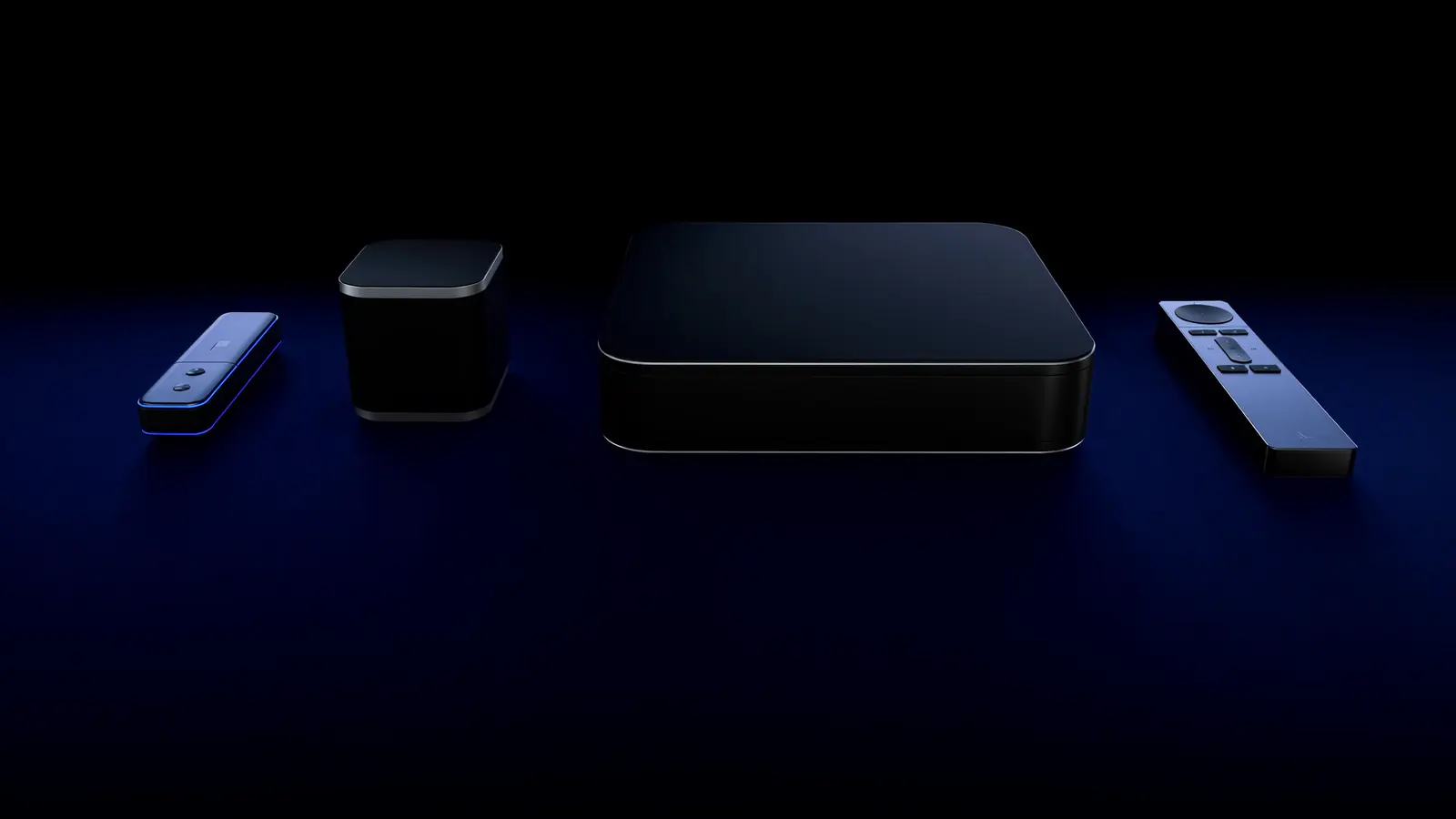
Smart TV App, Streaming Stick or TV Box? Choosing the Best Device for IPTV
Your TV's own apps, a streaming stick, a TV box or Apple TV — how they compare on speed, Wi-Fi vs Ethernet, 4K support and simplicity, and which suits which home.
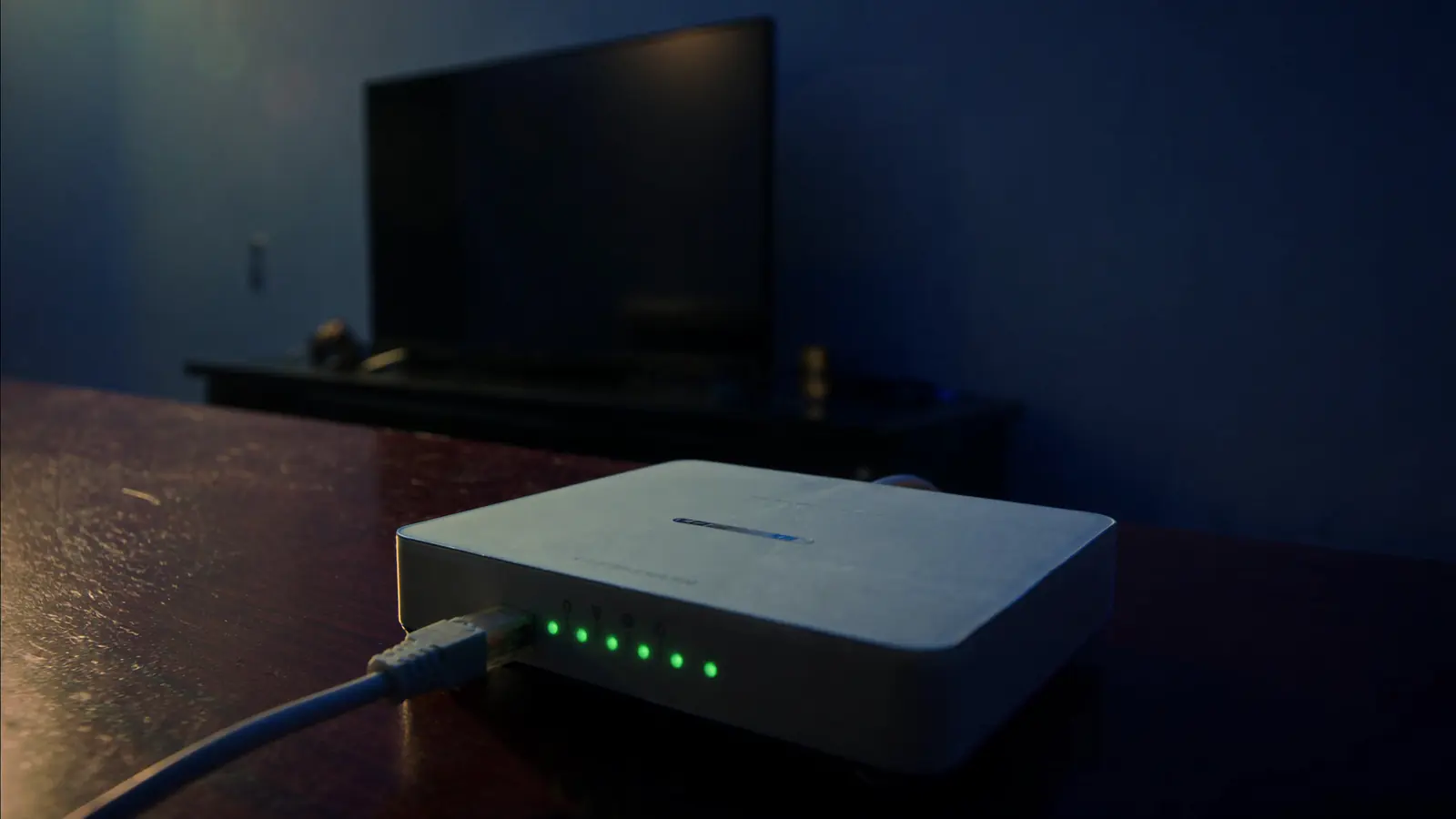
IPTV Not Working? A Symptom-by-Symptom Troubleshooting Checklist
Find your symptom — won't load, login error, black screen, crashes, works on one device only — and work through the fixes in the order most likely to help.

What Internet Speed Do You Need for IPTV?
Recommended speeds per stream, the maths for several screens, and how to test properly — because the speed at your sofa is what counts.