IPTV Not Working? A Symptom-by-Symptom Troubleshooting Checklist
Find your symptom — won't load, login error, black screen, crashes, works on one device only — and work through the fixes in the order most likely to help.
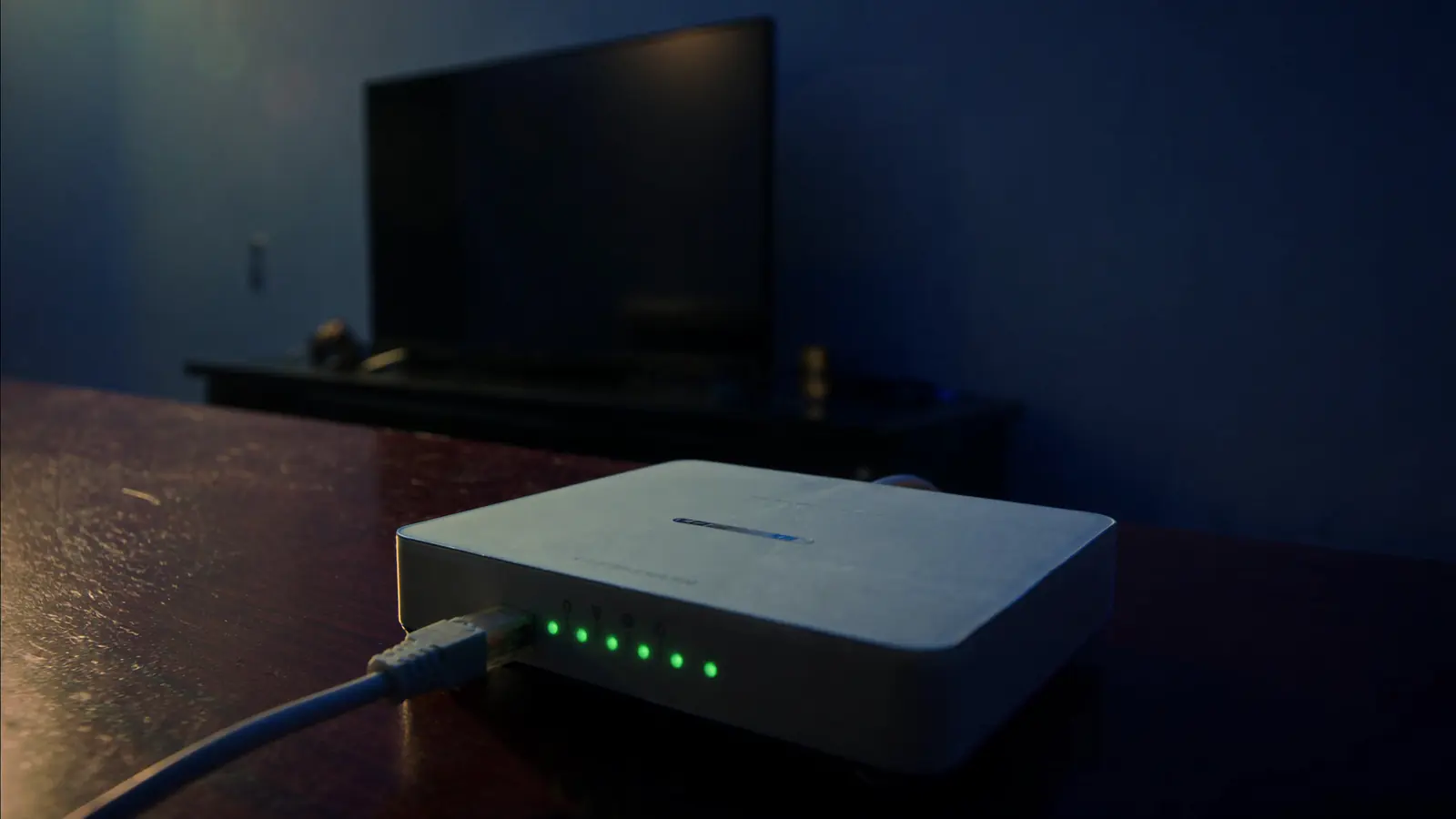
This checklist is organised by what you see, with fixes in the order most likely to help. Start with the 60-second reset below — it solves a surprising share of problems — then jump to your symptom.
For stuttering and pauses, go straight to IPTV buffering: causes and fixes. For an empty or wrong TV guide, see EPG not working.
First: the 60-second reset
Do these in order, and don't skip the router:
- Close the player app fully (not just the Home button — force-close it or restart the device).
- Unplug the router for 30 seconds, then plug it back in and wait until its lights settle.
- Restart the TV or streaming device properly — hold power or use Restart in settings, not standby.
- Open the app again and try a channel you know usually works.
Symptom: nothing loads, or "no channels"
Likely causes: mistyped access details, an expired plan, a first download that was interrupted, or wrong date/time on the device.
- Re-enter your details. They're case-sensitive; check for a space at the start or end — the most common setup mistake.
- Check the device's date, time and time zone are set automatically. Secure connections fail when the clock is wrong.
- Clear the app's cache (or reinstall), sign in again and let the full list download without interrupting.
- Confirm your plan is active with your provider.
Symptom: login or "account" errors
- Confirm you're using the details for the right app type (login vs playlist link — see IPTV terms explained).
- Check you're not over your plan's simultaneous connections: stop playback on other devices. See multi-device IPTV.
- If the app uses device activation, confirm the device is still activated on the app's website.
Symptom: black screen with sound (or sound with no picture)
Likely cause: the device can't decode that stream's video format.
- In the player settings, switch the decoder between hardware and software and retry.
- Try another channel. If only some channels fail, it's the stream format, not your setup.
- Update the app and the device firmware — decoder fixes are common in updates.
- On older devices, 4K/HEVC streams are the usual trigger — see video codecs explained.
Symptom: picture but no sound
- Check the TV isn't muted and the right audio output is selected (TV speakers vs soundbar).
- With a soundbar or receiver, set the device's audio output to PCM/Stereo as a test; if sound returns, the issue is surround-format passthrough.
- Sound present but late? That's audio sync, not missing audio.
Symptom: the app crashes or closes
- Update the app and the device.
- Free storage — streaming sticks especially slow down and crash when nearly full.
- Clear cache, then uninstall and reinstall from the official store.
- If crashes began after installing another app, remove that app.
Symptom: it works on one device but not another
That points to the failing device or its connection, not the service.
| Check | Why |
|---|---|
| Wi-Fi strength at that device | Bedrooms and cabinets often have weak signal |
| Software and app versions | Out-of-date apps behave differently |
| 4K vs HD capability | Older devices may not decode 4K streams |
| Same account details entered | Easy to mistype on a second device |
Device-specific steps: Samsung · LG · Android TV · Google TV · Fire TV · Apple TV
Symptom: one channel fails, the rest are fine
That's almost always at the source — the stream itself, or a temporary licensing or schedule change. Try again later and let your provider know which channel and when.
When to contact support — and what to send
If the reset and your symptom's fixes haven't worked, send your provider:
- the device model and app name,
- a photo of any error message,
- which channels or titles, and the time it happened,
- what you've already tried.
That list turns a long back-and-forth into a quick fix. IPTVBESTLIFE customers can reach us on WhatsApp or email.
About this guide. Written and maintained by the IPTVBESTLIFE team. Device menus and apps change over time — if a step no longer matches your screen, let us know and we'll update it.
Frequently asked questions
Why does IPTV stop working after a power cut?
The router may take several minutes to reconnect, and devices sometimes keep a stale connection. Wait for the router's lights to settle, then restart the TV or streaming device.
Can a wrong date or time really stop IPTV?
Yes. Secure connections check certificates against the device clock; if the date is wrong, connections can fail. Set date and time to automatic.
Related articles
IPTV Buffering: Why It Happens and How to Stop It
Buffering has a handful of causes, and each has a telltale sign. Diagnose yours in a few minutes, then apply the fix that actually matches.
IPTV TV Guide (EPG) Not Working? How to Fix Missing or Wrong Listings
Empty guide, 'no information' on some channels, or listings an hour out? Why the EPG is separate from your channels, and how to fix each problem.
How to Set Up IPTV on Any Device: A Step-by-Step Guide
A universal setup checklist that works on Smart TVs, streaming sticks, phones and computers — with links to device-specific guides where the steps differ.