Why Does My IPTV Picture Look Blurry or Blocky? How to Improve It
Soft, blocky, washed-out or oddly smooth pictures each have different causes. Identify yours and apply the right fix — connection, device or TV settings.
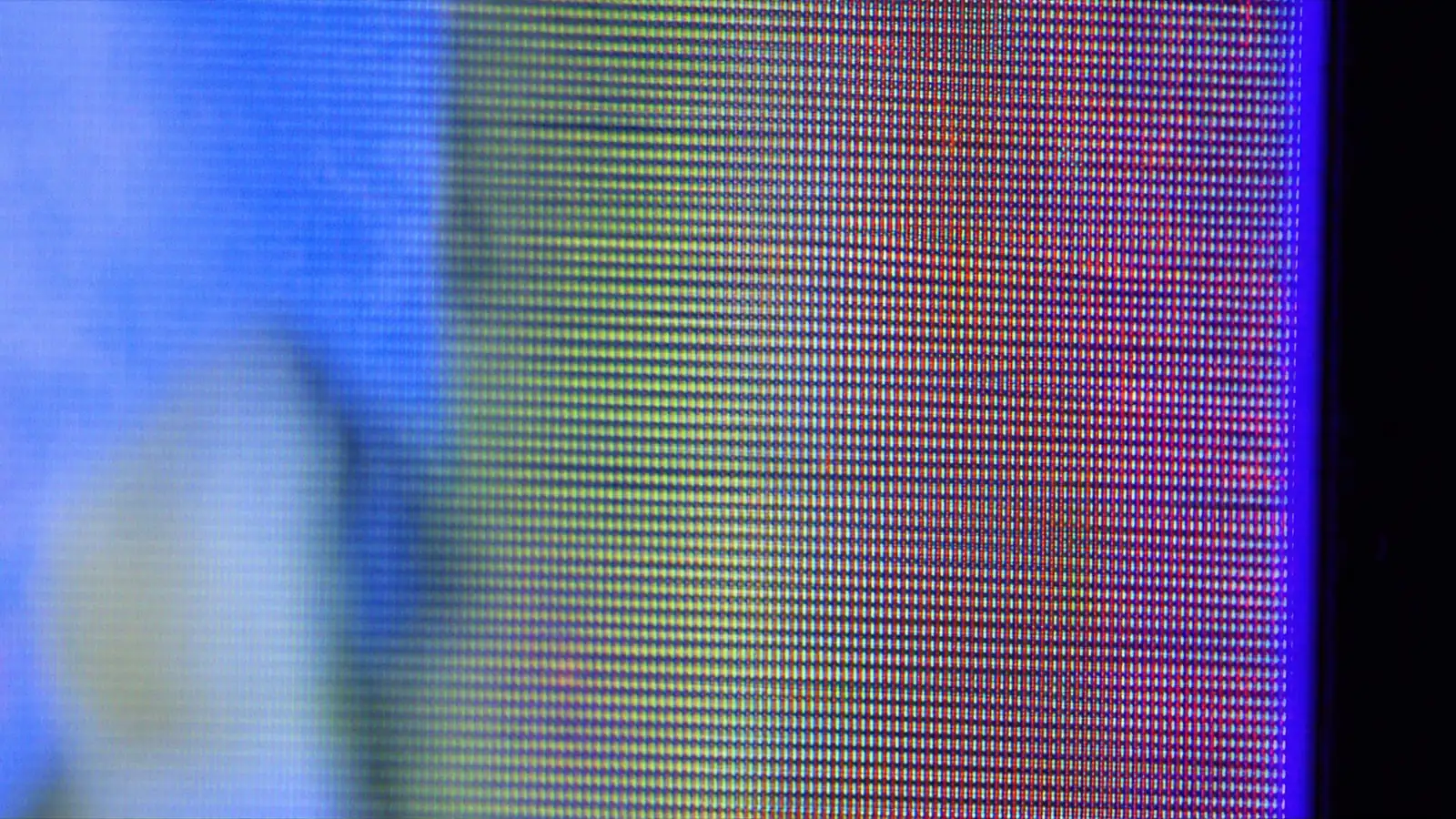
"Bad picture" covers several different problems, and each has its own cause. Identify which one you're seeing first — the fix for a washed-out picture is completely different from the fix for a blocky one.
If the picture pauses or spins, that's buffering rather than picture quality: see IPTV buffering causes and fixes.
Problem 1: Soft or blurry picture
What you see: everything slightly out of focus, or sharp one moment and soft the next.
Causes and fixes:
- Adaptive bitrate is lowering quality because your connection dipped. Sharpness coming and going is the giveaway. Improve the connection — Ethernet or strong 5 GHz Wi-Fi — and check how much speed you need.
- The device outputs a lower resolution than your TV. Check the display settings on your streaming device: output should match the TV (4K on a 4K TV). "Auto" usually works; if it picked 1080p on a 4K TV, set it manually.
- The source isn't high resolution. Many channels are broadcast in HD rather than 4K. No setting can add detail that isn't in the stream — see HD vs Full HD vs 4K.
Problem 2: Blocky, pixelated or "smeared" areas
What you see: squares in dark scenes, smearing on grass or crowds during fast motion.
Causes and fixes:
- Low bitrate — the stream is compressed hard, often because your connection forced a lower quality. Improve the connection as above.
- Demanding content. Fast sport, confetti, rain and dark scenes are the hardest material to compress; some artefacts in those moments are normal.
- The device struggles to decode the stream's codec. Enable hardware decoding and see video codecs explained.
Problem 3: Washed-out, grey or dull colours
What you see: blacks look grey, colours flat — often on HDR-capable setups.
Causes and fixes:
- The device forces HDR on regular content. Turn on "match dynamic range" (Apple TV) or turn off "always HDR" style options (Google TV, some Android boxes). See Apple TV settings.
- Energy saving is dimming the picture. Turn it off.
- Wrong black level / colour range. On some TV + device combinations, set the TV's HDMI black level to Auto, or match "full" vs "limited" range on both ends.
Problem 4: Unnaturally smooth "soap-opera" motion
What you see: films look like home video.
Fix: turn off or lower motion smoothing (Auto Motion Plus, TruMotion, Motionflow…). For sport, a low setting can help; for films, off. Brand menus: Samsung · LG
Problem 5: Judder or stutter on panning shots
What you see: regular micro-stutters when the camera pans, even though nothing is buffering.
Fix: enable match frame rate on your streaming device so 24, 25, 50 and 60 fps content plays at its native rate. It's under display settings on Apple TV, Google TV, Fire TV and many Android TV players.
A picture-settings starting point
| Setting | Films and series | Live sport |
|---|---|---|
| Picture mode | Filmmaker / Movie | Standard |
| Motion smoothing | Off | Low |
| Energy saving | Off | Off |
| Match frame rate (device) | On | On |
| Match dynamic range (device) | On | On |
More on getting films and sport to look their best: movie and series settings · live sports settings.
About this guide. Written and maintained by the IPTVBESTLIFE team. Device menus and apps change over time — if a step no longer matches your screen, let us know and we'll update it.
Frequently asked questions
Why does my IPTV picture go blurry for a few seconds?
Your connection dipped and the player switched to a lower-quality version to avoid pausing. A more stable connection — ideally wired — keeps it sharp.
Why do dark scenes look blocky?
Dark gradients are hard to compress, so low-bitrate streams show blocks there first. A faster, steadier connection lets the player use higher-quality versions.
Related articles
HD vs Full HD vs 4K Streaming: When Is 4K Worth It?
Resolution isn't the whole story. When 4K is visibly sharper, why HDR and frame rate often matter more, and what each quality level needs.
IPTV Buffering: Why It Happens and How to Stop It
Buffering has a handful of causes, and each has a telltale sign. Diagnose yours in a few minutes, then apply the fix that actually matches.

Video Codecs Explained: H.264 vs HEVC vs AV1 for Streaming
Codecs decide how much data a stream needs and whether your device can play it smoothly. H.264, HEVC, VP9 and AV1 compared in plain English.