Movies and Series on IPTV: Picture and Sound Settings for a Cinema Feel
A few minutes of setup makes films look the way their makers intended. Picture modes, HDR, clearer dialogue and on-demand features worth using.
Most TVs leave the factory tuned to look bright in a shop, not accurate in a living room. Three changes do most of the work for films and series: an accurate picture mode, motion smoothing off, and energy saving off. Then fix the sound — dialogue clarity is the most common complaint.
Picture: the big three
- Picture mode: Filmmaker Mode, Movie or Cinema. These modes aim for the colour and brightness the content was mastered with. They can look warmer and dimmer at first; give your eyes a few minutes.
- Motion smoothing: off. Features like Auto Motion Plus, TruMotion or Motionflow invent in-between frames, giving films the "soap-opera effect".
- Energy saving: off. It lowers brightness, which crushes detail in dark scenes.
HDR done right
HDR content can look spectacular — or washed out if your device forces HDR on everything.
- Enable match dynamic range on your streaming device so HDR is used only for HDR content (Apple TV, Google TV).
- In a bright room, the TV's HDR brightness or tone mapping settings may need raising.
- Formats and what they mean: HD vs Full HD vs 4K.
Room lighting
- Dim or close lights behind you — reflections on the screen lower contrast more than any setting.
- A soft light behind the TV (bias lighting) reduces eye strain in a dark room without washing out the picture.
Sound: making dialogue clear
Films are mixed for cinemas, so speech can get lost on TV speakers.
- Turn on the TV's dialogue enhancement / clear voice setting.
- Night or dynamic range compression modes narrow the gap between quiet speech and loud action — useful late at night.
- A soundbar with a centre channel is the single biggest upgrade for dialogue.
- If voices don't line up with lips, see fixing audio sync.
Getting the most from on-demand
- Continue watching and favourites save browsing time.
- Subtitles: most players let you set size and background; a semi-opaque background improves readability on bright scenes.
- Parental controls: set a PIN on family devices where the app supports it.
- Quality: on-demand titles buffer ahead more than live TV, so they often look sharper on the same connection.
Genres, availability and expectations
Whether it's a thriller, a drama or a family film, these settings help every genre. Specific titles depend on licensing and can change over time, so check availability for anything you particularly want to watch.
A one-minute checklist before movie night
- Filmmaker/Movie mode
- Motion smoothing off
- Energy saving off
- Match dynamic range and frame rate on the streaming device
- Dialogue enhancement on (if needed)
- Lights behind you off
If a film still looks soft or blocky after this, the cause is usually the connection — see improving IPTV picture quality.
About this guide. Written and maintained by the IPTVBESTLIFE team. Device menus and apps change over time — if a step no longer matches your screen, let us know and we'll update it.
Frequently asked questions
Why does Filmmaker Mode look dim at first?
It removes the extra brightness and blue tint of showroom modes. After a few minutes your eyes adjust, and colours look more natural.
How do I stop the soap-opera effect?
Turn off motion smoothing — called Auto Motion Plus, TruMotion or Motionflow depending on the brand.
Related articles
Why Does My IPTV Picture Look Blurry or Blocky? How to Improve It
Soft, blocky, washed-out or oddly smooth pictures each have different causes. Identify yours and apply the right fix — connection, device or TV settings.
IPTV Audio Out of Sync? How to Fix Lip-Sync Delay
When voices don't match lips, the delay comes from one of three places: the stream, the TV's picture processing, or the audio chain. Here's how to find and fix it.
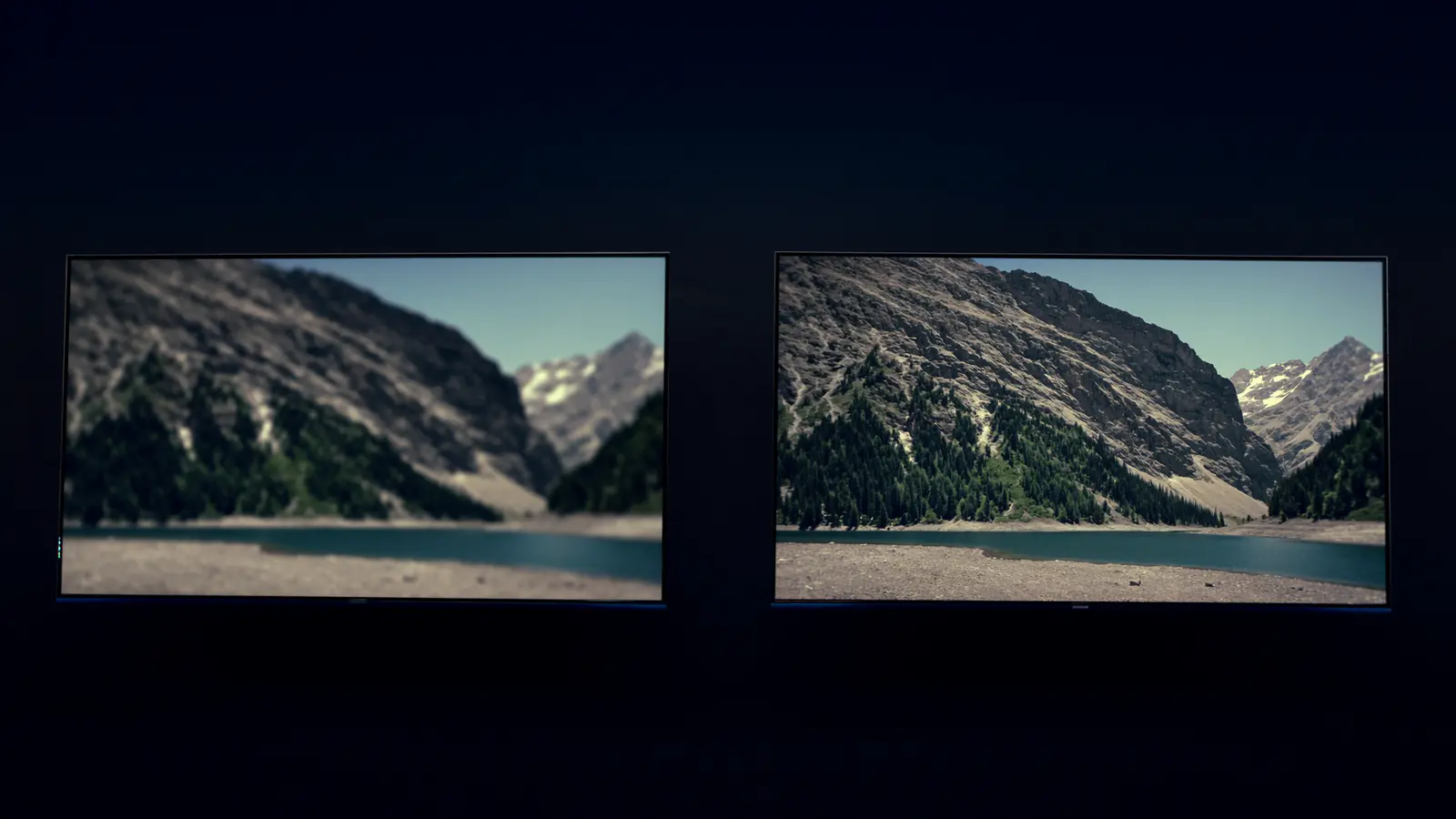
HD vs Full HD vs 4K Streaming: When Is 4K Worth It?
Resolution isn't the whole story. When 4K is visibly sharper, why HDR and frame rate often matter more, and what each quality level needs.